560 Shaares
2 Ergebnisse
markiert
Caja
#!/bin/bash
#
# This script opens a gnome-terminal in all selected directories, if nothing is selected it opens in current directory.
#
# You need to have caja-actions installed to use scripts.
# Put this file in your ~/.config/caja/scripts/ directory. Then:
# chmod +x ~/.config/caja/scripts/open-terminal-here
# vim ~/.config/caja/accels
# add the following line
# (gtk_accel_path "<Actions>/ScriptsGroup/script_file:\\s\\s\\shome\\sUSER\\s.config\\scaja\\sscripts\\sopen-terminal-here" "F4")
# where USER is your user name. This binds the script to F4, but of course you can change the shortcut as you like.
# Quit Caja (caja -q) and restart it.
# I've tested it on Ubuntu 19.10.
#
# Extended from following sources:
# https://github.com/mate-desktop/caja-extensions/issues/31#issuecomment-385655453
# http://misawascriptkid.blogspot.com/2012/06/caja.html
# https://forums.linuxmint.com/viewtopic.php?p=773382&sid=9939ce160bd97313f849367231eb721a#p773382
# http://g-scripts.sourceforge.net/nautilus-scripts/Execute/Open%20terminal/terminal-here

if [[ -z "$CAJA_SCRIPT_SELECTED_FILE_PATHS" ]]; then
    uri="${CAJA_SCRIPT_CURRENT_URI:7}"
    exec gnome-terminal --working-directory="${uri//%20/ }"
    exit
fi

while read path; do
    if [[ -d "$path" ]]; then
        gnome-terminal --working-directory="$path" &disown
    fi
done <<< "$CAJA_SCRIPT_SELECTED_FILE_PATHS"
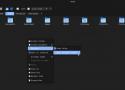
If you’re a Mate desktop user, Caja serves as your primary file manager. Today, let’s delve into something exciting—expanding the functionalities of Caja using Bash scripting. Additionally, these methods can easily apply to Nautilus with just a few adjustments, refer to Ubuntu’s Nautilus Scripts How-to.